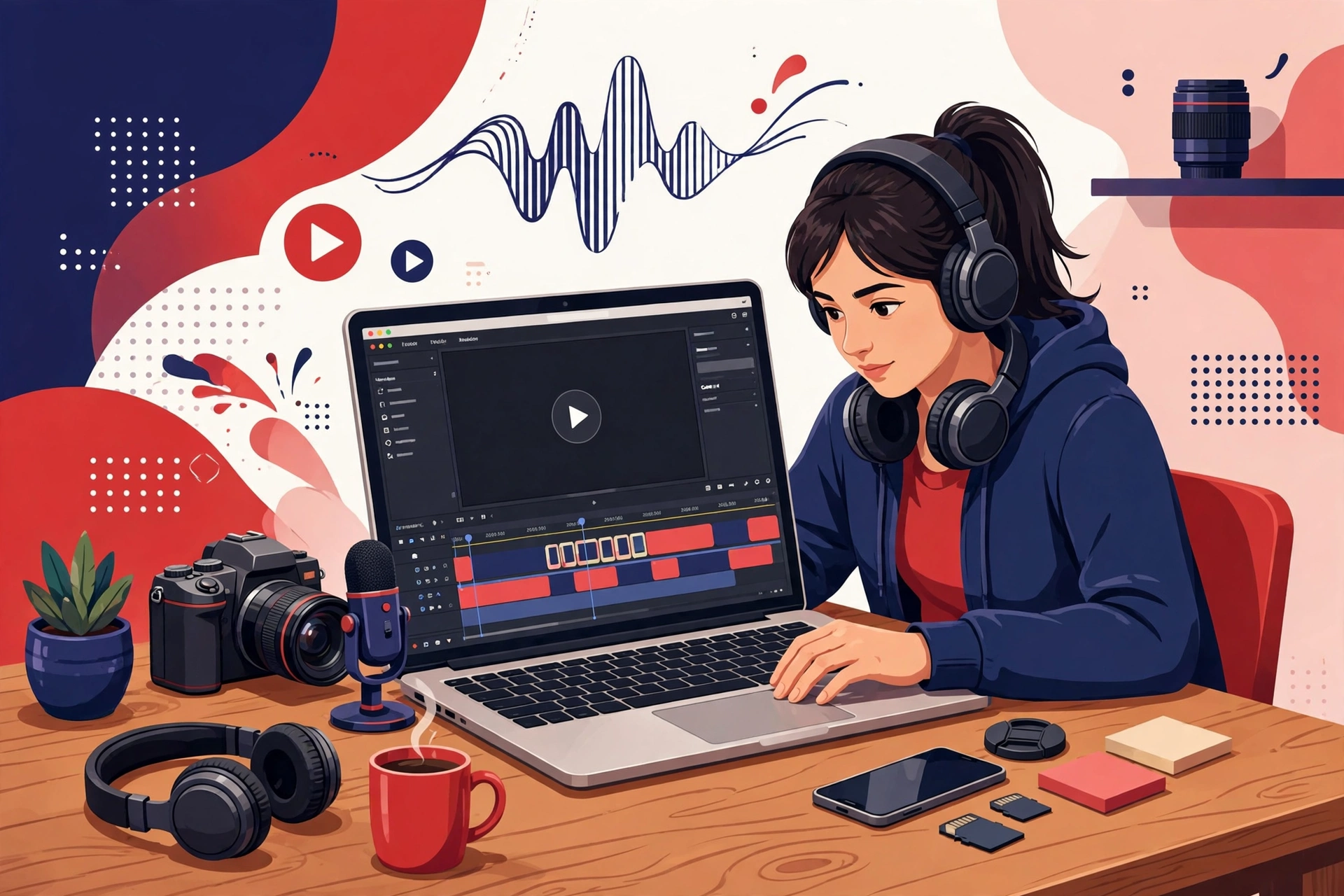
Starting a YouTube channel does not require expensive software. What you need at the beginning is a simple editor you can learn quickly, a repeatable workflow, and enough confidence to publish your first videos and improve a little each time. This guide explains how to choose free video editing tools as a beginner, what features actually matter, and how to build a calm editing routine that helps you finish videos instead of endlessly tweaking them.
What a beginner editor really needs
Many new creators compare long feature lists and feel overwhelmed before they record anything. In practice, your first twenty videos will mostly use the same small set of actions. You will trim the start and end, cut mistakes and long pauses, add a title or a few captions, place simple transitions, adjust volume so your voice is clear, and export in a format YouTube accepts. If a free tool handles those jobs reliably on your computer or phone, it is good enough to start.
Look for a clear timeline, easy splitting and trimming, readable text tools, basic colour and audio controls, and an export preset for Full HD. A large effects library is less important than stability. An editor that crashes or hides your project behind confusing menus will slow you down more than a modest editor that feels predictable. Free versions sometimes limit exports, add watermarks, or reserve advanced effects for paid plans, so check the export screen before you invest hours in a project. Where possible, test with a short clip first.
Three types of free tools to consider
First, there are simple timeline editors designed for beginners. These usually offer drag-and-drop clips, ready-made titles, and one-click export settings. They are ideal if you film talking-head videos, tutorials, or vlogs and want to learn the basics without a steep learning curve. Second, there are more capable desktop editors that include multiple tracks, keyframes, and finer audio control. They take longer to learn but give you room to grow when you start adding B-roll, music, and overlays. Third, there are mobile editors that work well when you film and publish from your phone. They can be surprisingly effective for Shorts and quick updates, especially when you use templates carefully and keep your branding consistent.
There is no single best choice for everyone. A laptop editor suits longer tutorials where you need precise cuts and a bigger screen. A phone editor suits fast, simple videos where speed matters more than fine control. Some creators use both: they assemble a rough cut on a phone, then finish captions, audio, and export on a computer, or the other way around. Choose the tool that matches the device you already own and the kind of videos you plan to make most often. Starting with equipment you have is usually smarter than buying new gear for a channel that is still finding its topic.
A simple editing workflow you can repeat
A repeatable workflow protects you from decision fatigue. Try this order for every video. First, organise your files in one folder per video, with subfolders for footage, audio, images, and exports. Second, build a rough cut that follows your script or outline from start to finish without worrying about polish. Third, watch the rough cut once and mark only the obvious problems: mistakes, repeats, dead air, and sections that drift from the main point. Fourth, tighten those sections, then add titles, captions, and any supporting visuals. Fifth, balance the audio so speech stays clear and music, if you use it, sits quietly underneath. Finally, export, watch the exported file once, and upload with a clear title and thumbnail.
This sequence matters because it separates structure from decoration. Beginners often add music, effects, and colour adjustments before the story makes sense, then discover they need to re-cut everything. If you fix the order of ideas first, every later step becomes easier. Keep a small checklist beside you until the routine feels automatic. Over time you will develop shortcuts, presets, and templates, but the underlying order can stay the same for almost any beginner video.
Features that help, and features you can ignore for now
Helpful features for beginners include magnetic or snapping timelines that close gaps automatically, waveform display so you can see pauses and loud peaks, auto-caption tools you can edit by hand, simple background-noise reduction, and safe export presets. Undo history and autosave are also valuable because they let you experiment without fear of ruining a project. If your editor supports reusable title templates, create one title style and use it consistently so viewers recognise your videos.
You can safely ignore advanced colour grading, complex motion tracking, multi-camera editing, and elaborate visual effects at the start. Those skills can be learned later when a specific video needs them. The same applies to buying large template packs. A clean cut, clear audio, readable text, and a focused topic will do more for a beginner video than a dramatic transition between every clip. Viewers return for useful, understandable content presented with care, not for editing tricks that distract from the message.
Common beginner mistakes to avoid
The most common mistake is editing while recording in your head: trying to make every sentence perfect, then facing hours of tiny cuts. A simple script or bullet outline reduces this problem because you know what each section must say. Another mistake is making music louder than speech, or adding so many captions and stickers that the screen feels busy. A third is exporting without watching the final file, which can hide missing audio, wrong aspect ratio, or text cut off at the edges. A short final check prevents most of these problems.
Also avoid changing editors every week. Each program organises tools differently, and constant switching resets your learning. Pick one free editor, make several complete videos with it, and note the specific limitations you actually encounter. If you repeatedly need a feature your tool lacks, that is a sensible reason to try another option. If you are switching only because a different interface looks exciting, you may be delaying the more important work of improving topics, scripting, and presentation.
Your first-week practice plan
On day one, import a short test clip, practise trimming, splitting, and undoing, then export it. On day two, record a two-minute explanation on any familiar topic and cut out mistakes. On day three, add a title, simple captions, and background music at a low level, then export again. On day four, repeat the process with a slightly longer video and time how long each stage takes. By the end of the week you will know which steps slow you down and which shortcuts are worth learning next. Small, finished practice projects teach more than watching hours of advanced tutorials without applying them.
Begin with free tools, publish consistently, and upgrade only when a clear limitation appears in your own workflow. Keep your process simple, protect your project files with backups, and remember that editing is a support skill: it helps your ideas reach viewers clearly. Your next step is to choose one editor today, cut a short test video, and learn by finishing it.